Step-by-step guide
![Main screen with the Start shift button highlighted]()
Start your shift
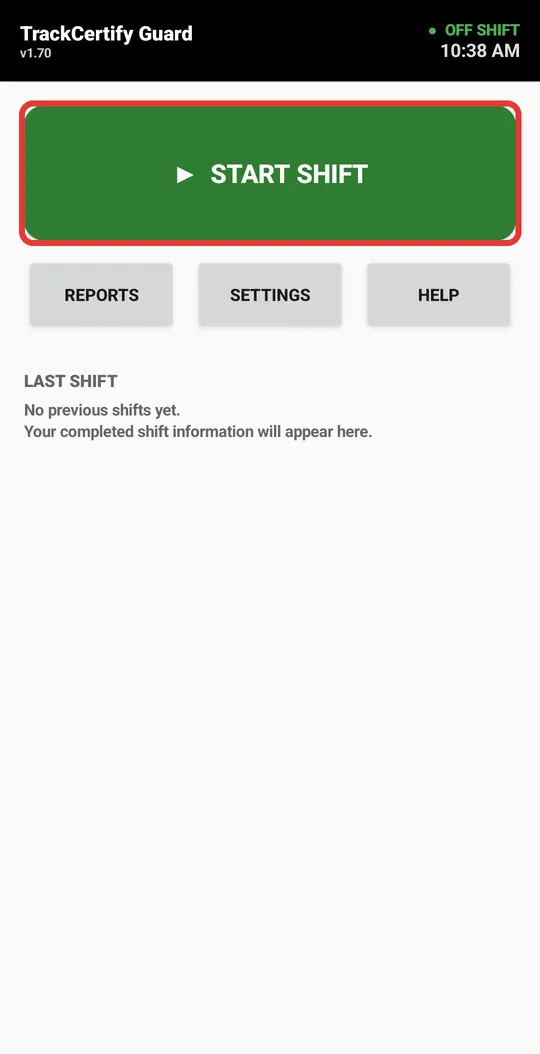
When you get to your post, open Guard and tap Start shift. From that moment the app records your route with GPS.
![On-shift screen with ON SHIFT and Take Photo highlighted]()
During the shift
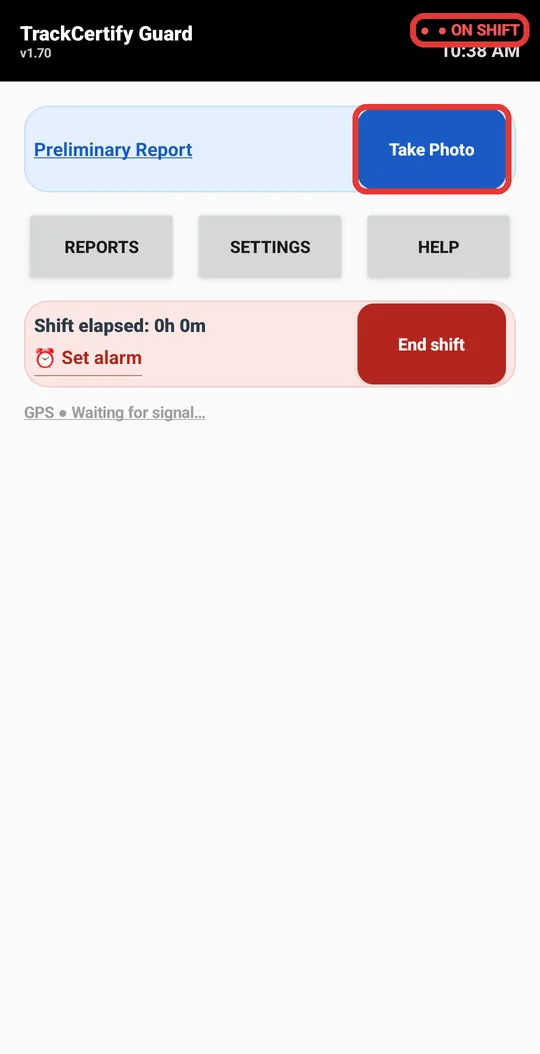
The top right says ON SHIFT. Whenever you want to record something, tap Take Photo.
At the bottom, «GPS» shows the signal status. Inside a building it can take longer; outdoors it connects quickly.
![On-shift screen with the elapsed time and End shift highlighted]()
Put your phone away
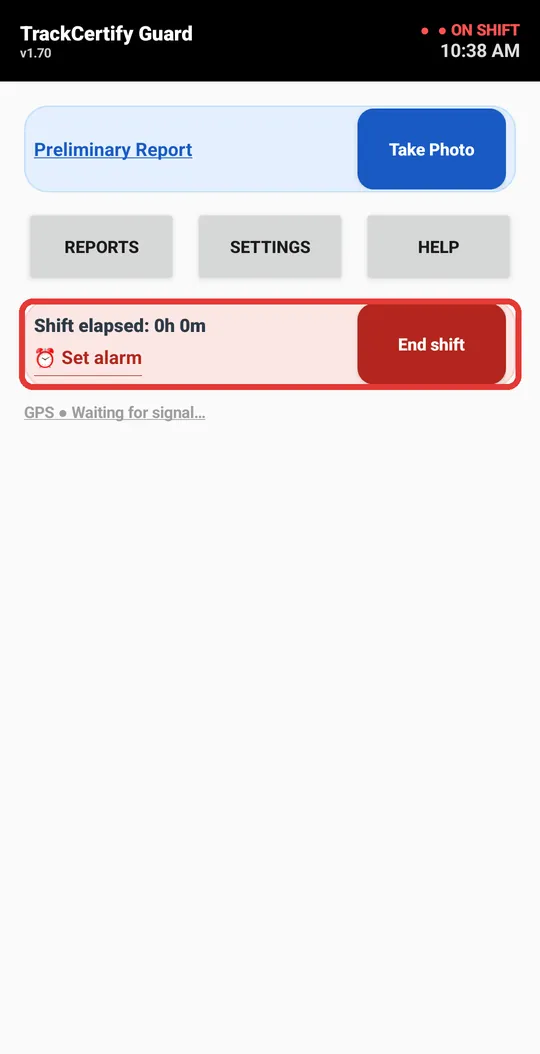
You can turn off the screen and put the phone in your pocket: Guard keeps recording. Here you see how long you've been on shift, and with Set alarm the app reminds you when it's almost time to finish.
If the app closes or the phone turns off, open it again and Guard recovers your shift.
On iPhone: don't swipe the app away during your shift — iOS stops the GPS until you open it again. Turning off the screen or using other apps is fine.
![The app's camera with the Capture button highlighted]()
Take the photo
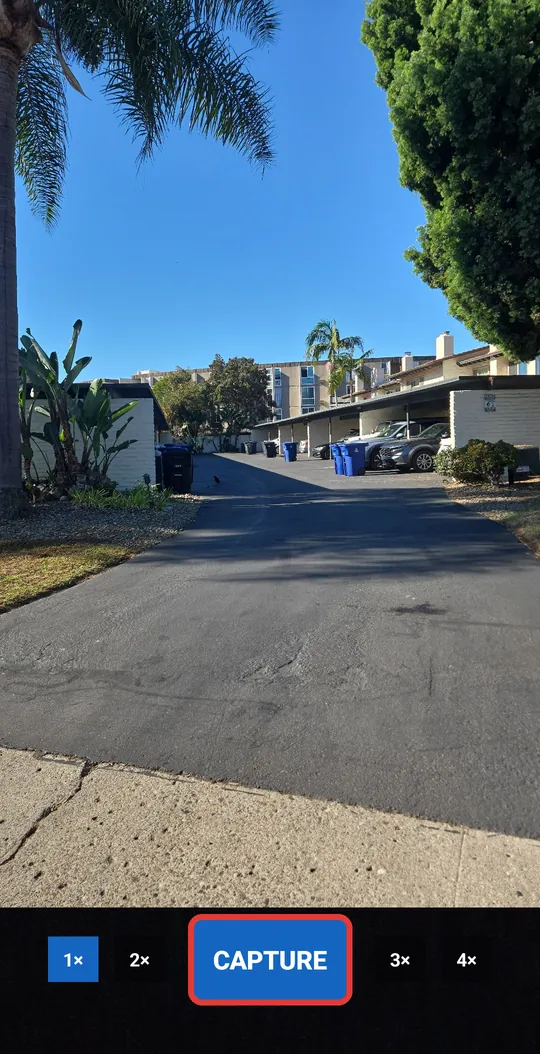
Point the camera and tap Capture. Use 1× 2× 3× 4× to zoom in.
![On-shift screen with Add note highlighted]()
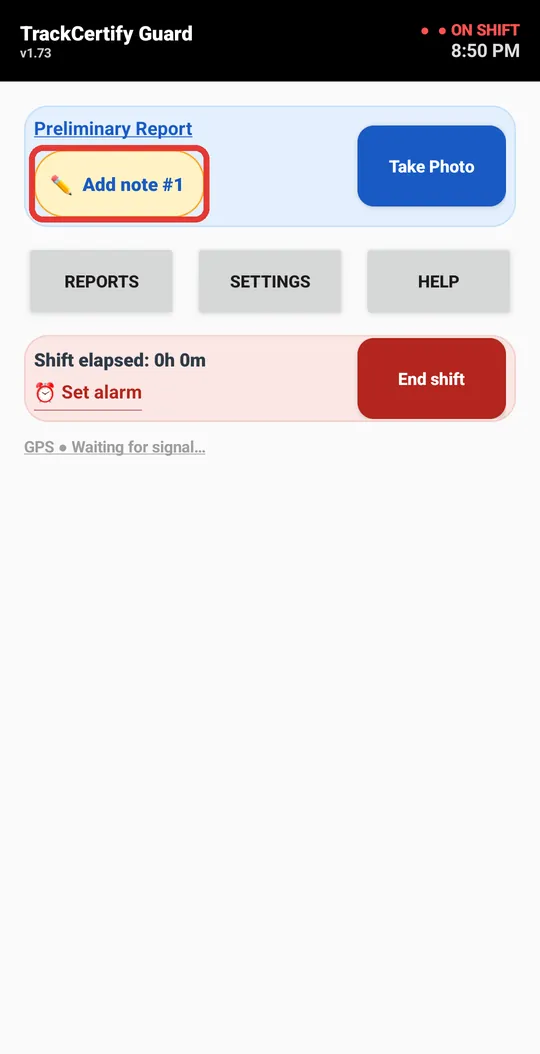
Add a note
The photo is saved with date, time and location. Tap Add note to rate it: it's optional, but it really helps whoever reads the report.
![Add Note screen with the green level and a quick phrase highlighted]()
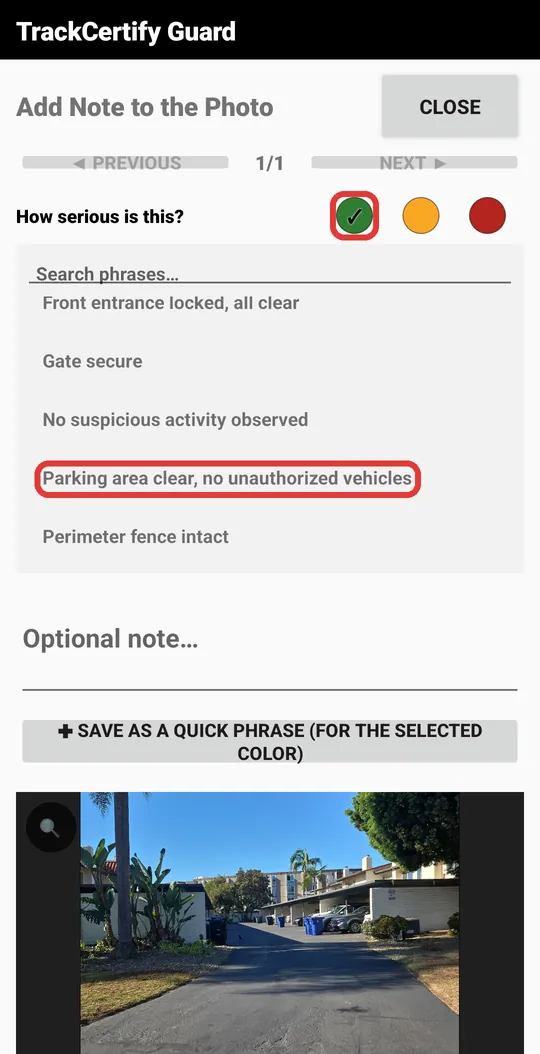
How serious is it?
Choose how serious what you photographed is: green = all good, yellow = something to watch, red = serious. Then tap a quick phrase or write your own note.
Whoever reads the report sees at a glance which photos need attention.
![Saved note with the Close button highlighted]()
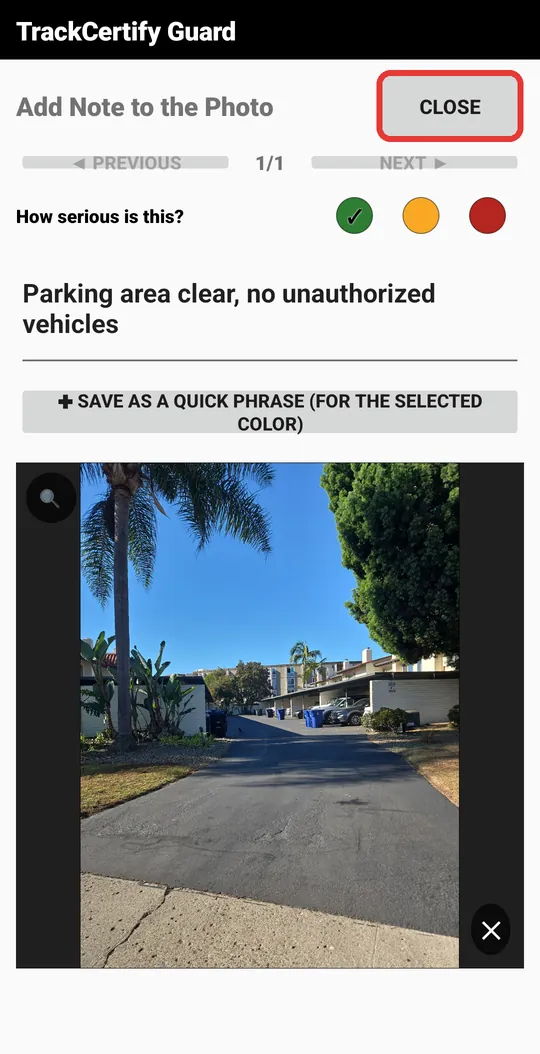
Note saved
The note stays with the photo. Tap Close to go back to your shift, and repeat for each photo.
![«Time to take a photo» notification highlighted]()
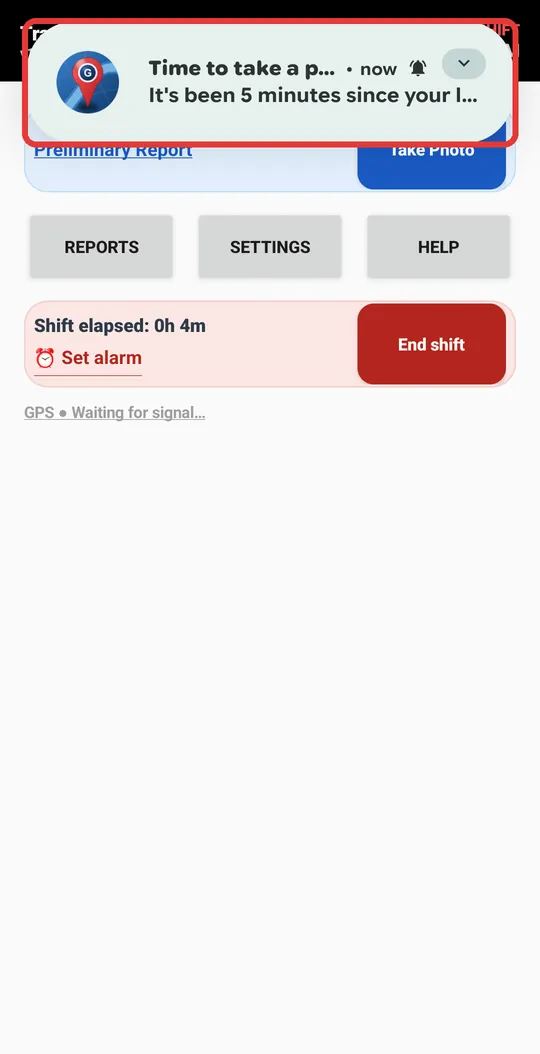
When the reminder comes, take a photo
If a while goes by without photos, Guard lets you know: «Time to take a photo». When it arrives, tap Take Photo right then, wherever you are.
🔔 This matters: each photo is saved with date, time and location, and shows you were doing your rounds. If the report has a long stretch without photos, whoever reviews it might wonder what happened during that time. A timely photo makes it clear.
![End shift window with End Shift and Generate Report highlighted]()
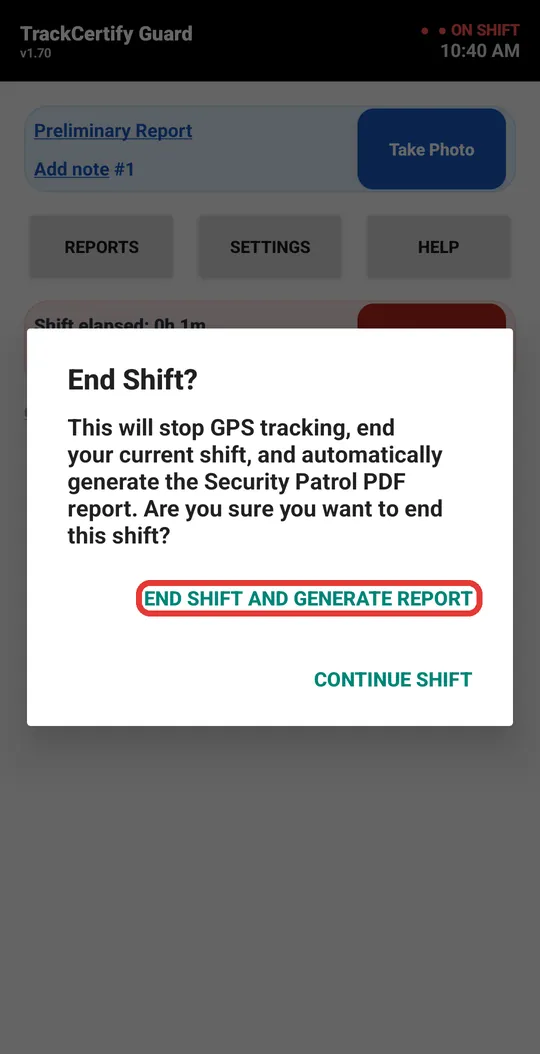
End the shift
When you finish, tap End shift and confirm with End Shift and Generate Report. GPS stops and Guard builds your PDF report.
At that moment you need internet so the report includes the map. You don't need it during the shift.
![Shift-ended screen with Open PDF and the share buttons highlighted]()
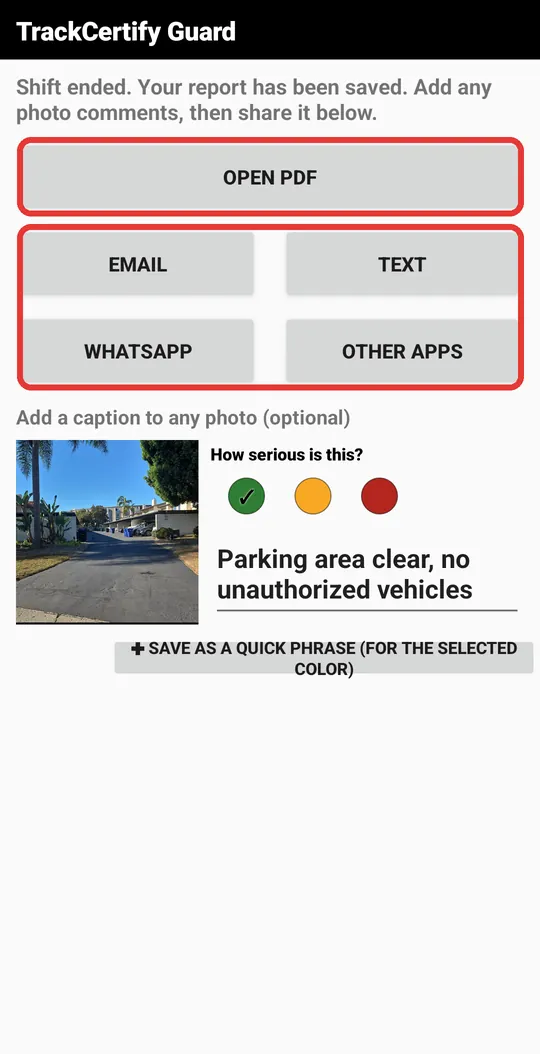
Send the report
Tap Open PDF to view it, or send it straight away by WhatsApp, Email, Text (SMS) or other apps. Here you can also correct how serious each photo is, or its note, before sending it.
On iPhone, the WhatsApp button opens the share sheet: pick WhatsApp there.
![First page of the sample report with the shift summary]()
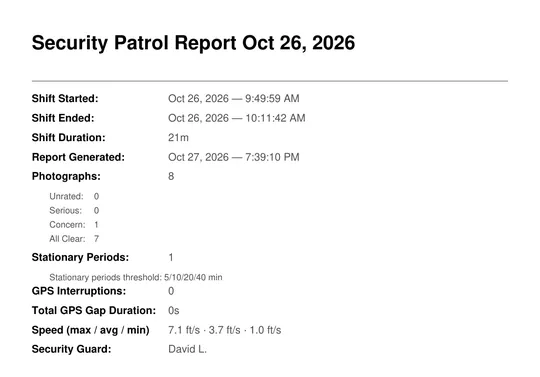
The report: summary
The PDF starts with a shift summary: start and end, duration, how many photos there are at each severity level, and the guard's name.
These pages come from a real sample report: open it to see the whole thing.
![Map from the sample report with the route and numbered photos]()
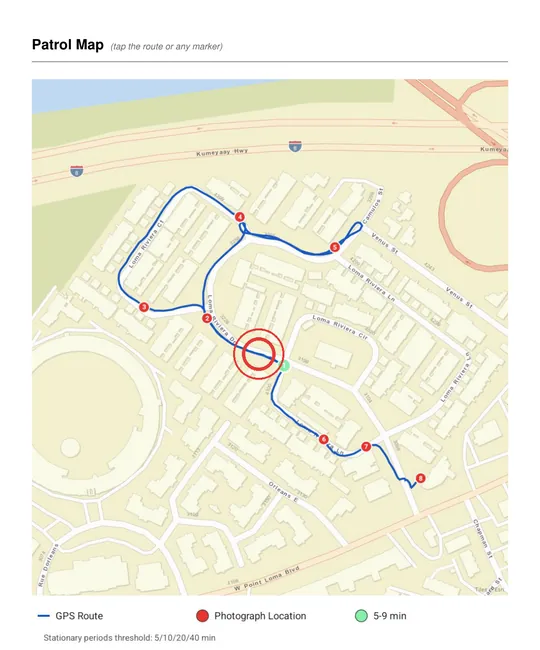
The route map
The map shows your whole route in blue, with a numbered red dot where you took each photo. Green circles mark where you stayed still for a while.
👆 You can tap the map: tap any point on the route or a photo number. The next step shows what opens.
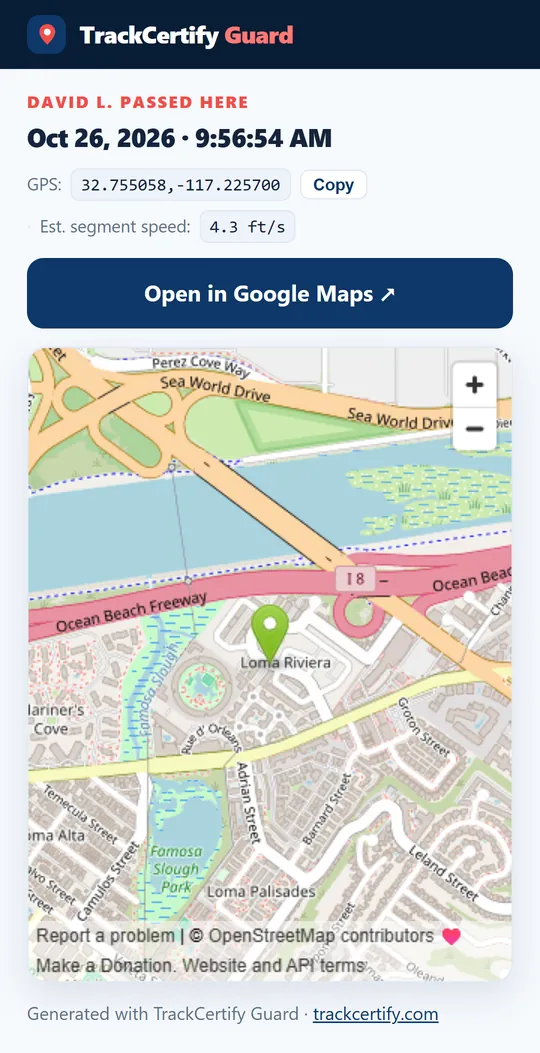
![Page that opens when you tap a point: who was there, date, time, GPS and an Open in Google Maps button]()
Tap a point on the route
A page opens showing who was there, the exact date and time, the GPS coordinates and the speed on that stretch. Open in Google Maps shows the place.
That way your supervisor, your client or you yourself can check any moment of the shift, on a phone or a computer. You only need internet when opening it.
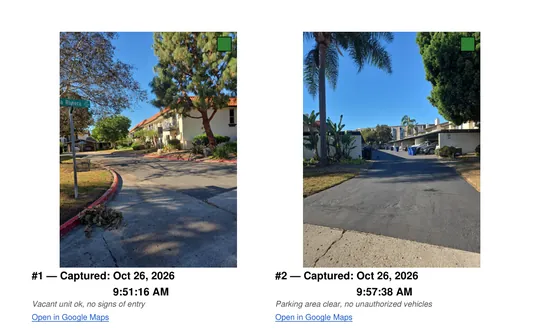
![Photo page from the sample report with date, time and note]()
The photos
Each photo comes with its number, exact date and time, your note and how serious it is. «Open in Google Maps» shows the exact spot where you took it.
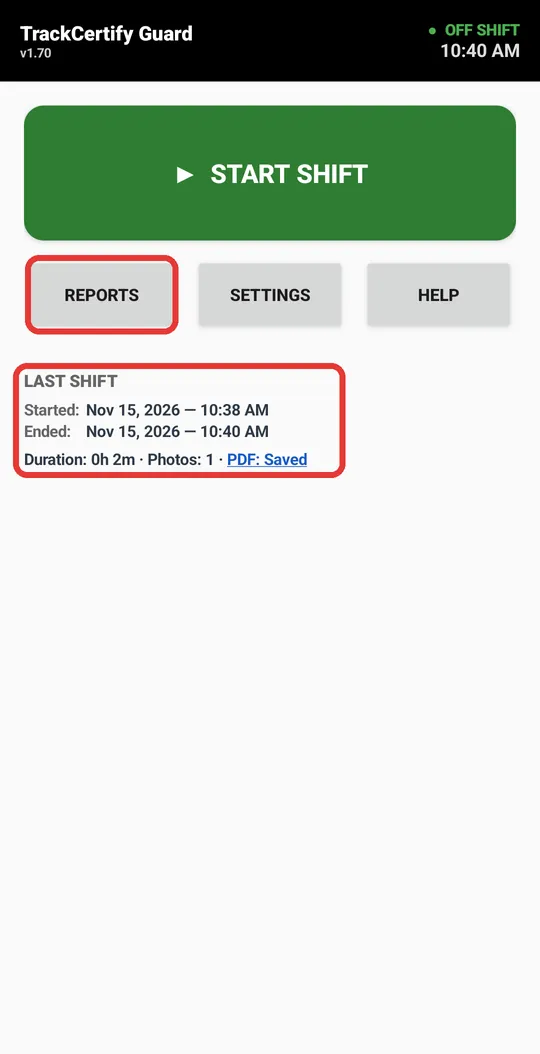
![Main screen with Last shift and Reports highlighted]()
Your reports
On the main screen, Last shift sums up your previous shift. Reports has all your saved reports, to open or send them again.
Questions? Check the FAQ or email us at support@trackcertify.com.
You can also swipe the picture with your finger.
Don't have the app yet?
Install it here — it's free and takes a couple of minutes. Stuck? Check the FAQ or email us at support@trackcertify.com.